
Getting Started with Clash Verge
Last updated:
Use this guide to configure the original Clash Verge on Windows, macOS, or Linux. It covers the archived release and helps you check whether a provider profile still works with your installed core.
Contents
What is Clash Verge?
Clash Verge is a desktop interface for managing Clash proxy configurations and routing rules. The original project is archived. Compatibility depends on the build installed and the protocols in your profile.
How to Download and Install?
Select a package for your platform. The download page lists version 1.3.8, with Windows setup and portable options, Mac disk images, and Linux packages. Review the download source and check your system requirements before installing.
Interface Overview
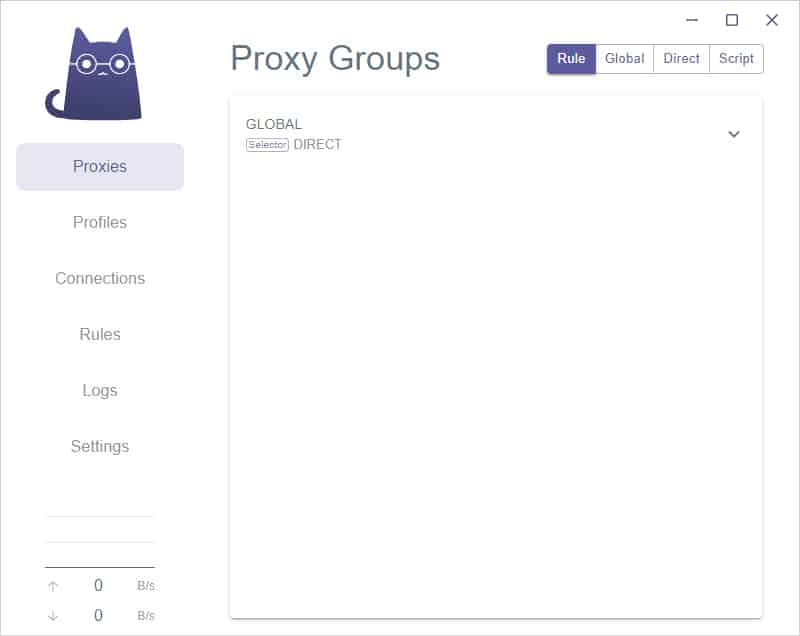
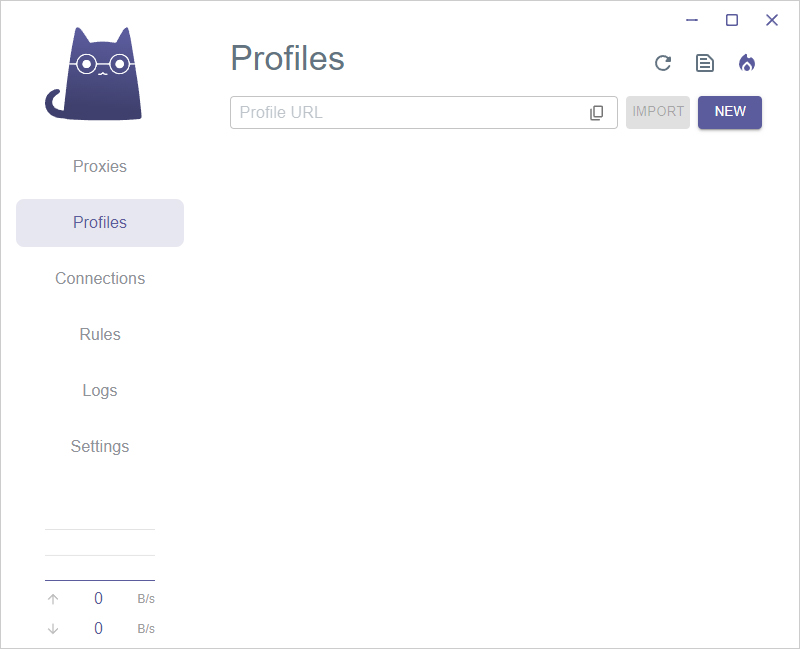
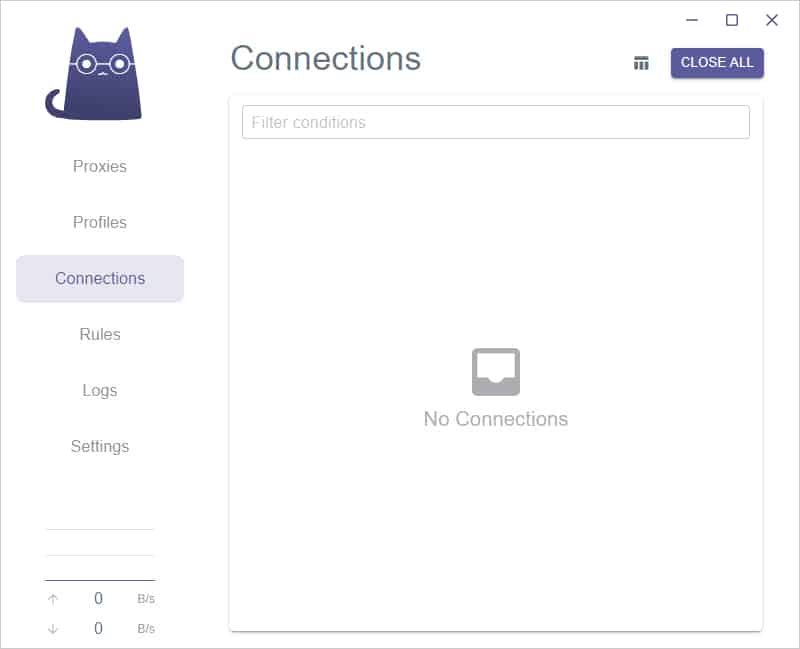
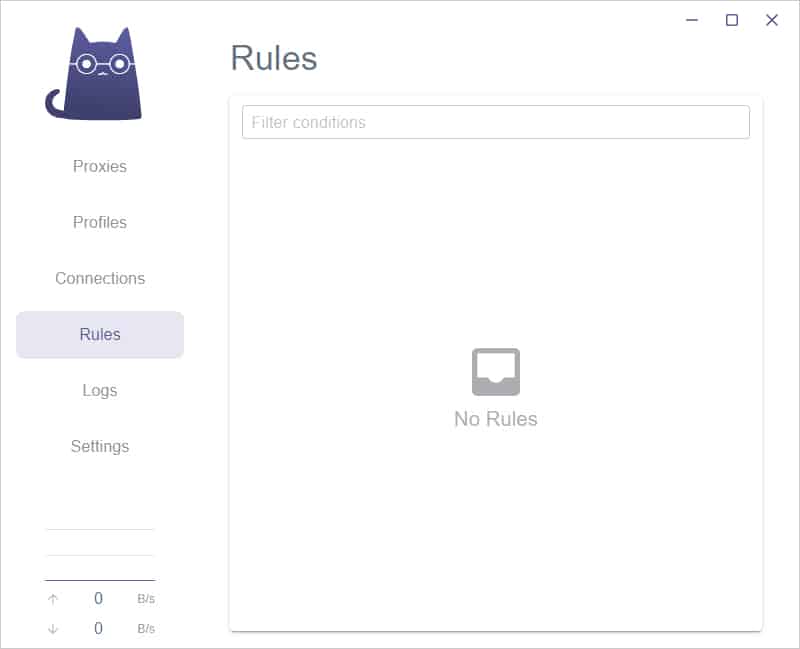
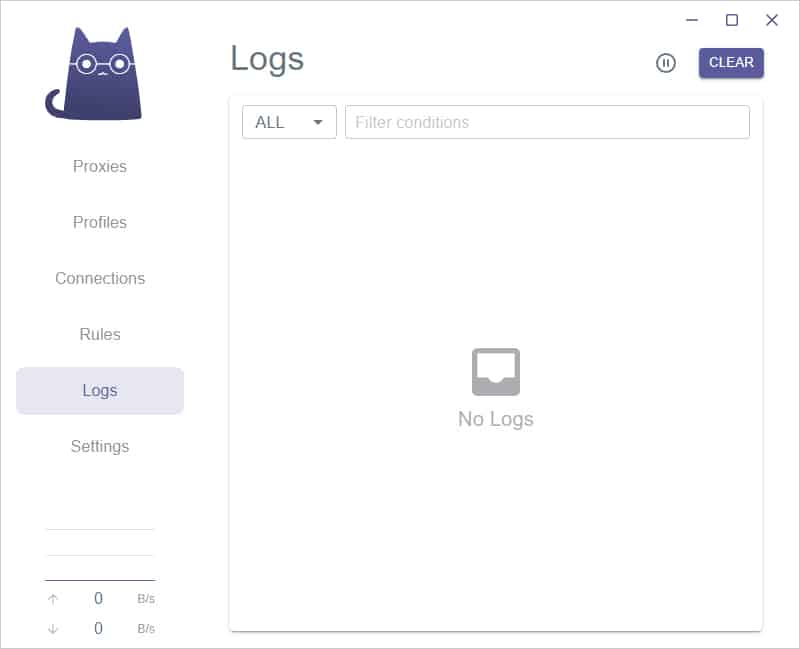
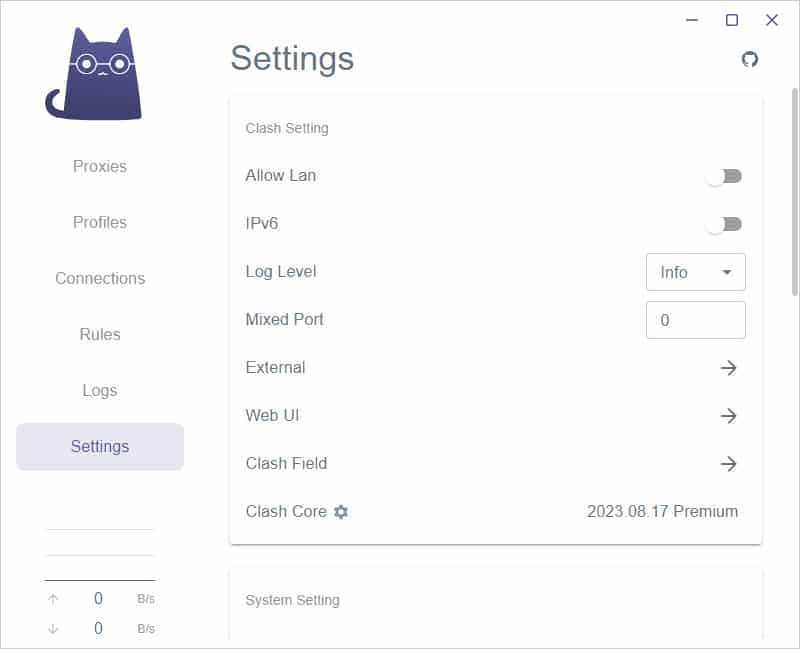
Use Profiles to add and select a configuration. Proxies shows the groups and servers defined by the selected profile. Enable System Proxy in Settings to route applications that honor your operating system’s proxy settings through Clash Verge. Use Connections to check the route used by a request.
Servers
Ask your provider for a profile that supports your installed core. Modern service updates can introduce protocols or configuration fields the archived client cannot read. Confirm the profile format and the active nodes before buying.
Check server compatibility for the original Clash Verge
Quick Configuration
- Open Profiles, paste a compatible subscription URL into the import field, and select Import.
- Activate the profile, then open Proxies and pick an available node in an applicable group.
- Open Settings and enable System Proxy. With Rule mode selected, visit a site covered by a proxy rule and check the request in Connections.
Import works but the node fails? Refresh the profile or select another compatible node. If the updated YAML fails to parse or introduces a newer protocol, ask your provider for a configuration that fits your build and retain your previous working profile until you have tested a replacement.